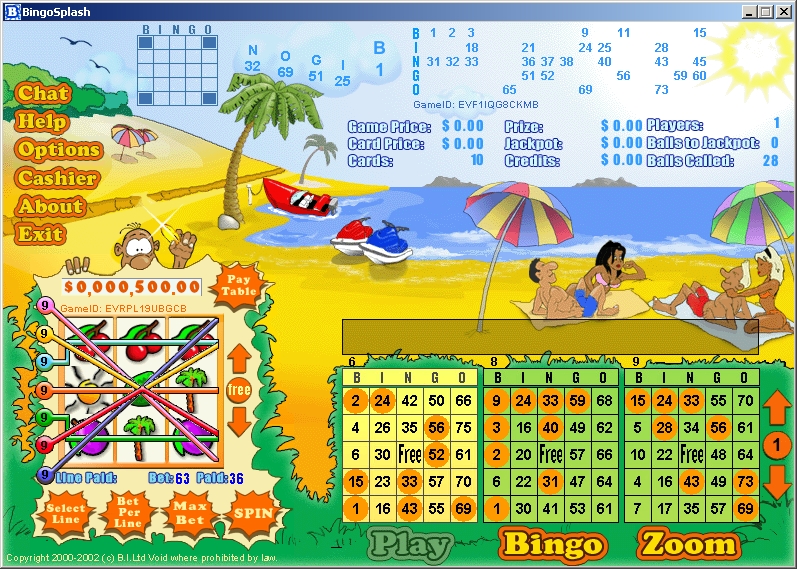
The BINGO SPLASH playing window is divided into several areas. Each area shows certain information about the game or provides access to other features.
(You may want to maximize the Explorer window for better viewing.)
This is a picture of the BINGO SPLASH playing window. Click an area on the image to jump to the description of the selected area. You can also read the explanations in sequence by scrolling down the page. The areas are described one after the other starting from the lower left corner of the window.
 The BINGO SPLASH Slots occupy
the lower left corner of the playing window. The slot reels are set in
initial position. One payline, one coin per line are selected by default.
The BINGO SPLASH Slots occupy
the lower left corner of the playing window. The slot reels are set in
initial position. One payline, one coin per line are selected by default.
Game ID shows the identification number of the current game. Clicking on the slot game ID copies the identification number of the game to the Clipboard. Please, paste this number in the e-mails you are sending to customer support when you have problems with a certain game, so that they will be able to help you.
Pay Table shows the payout rate for every winning combination of symbols. The combinations are arranged in descending order - from the highest paying to the lowest paying.
Line Paid shows the amount of the coins paid for the selected line.
Bet indicates
the total amount of your bet. The value in the bet field is equal to the
number of lines you play, multiplied by the number of coins you place
per line.
Note: Your bet does not change throughout all
games unless you decide to change it.
Paid shows the total amount of the paid coins from all winning lines.
Select Line allows you to select the lines that you wish to play. The maximum number of lines that you can play is seven. Each line has a different color. You can select lines only in the order set by the game. The central line is selected by default. Each click of the Select Line button adds a new line to the lines that you have already selected. Click the button as many times as needed to select the desired number of lines.
Bet per Line allows you to change the number of coins you bet per line. The number of coins is shown in a color circle at the end of the line. It is valid for all lines you play. The more coins you play, the higher the pay out will be.
Click Max Bet if you want to bet the maximum amount of coins. The reels start spinning automatically (there is no need to push the SPIN button).
SPIN starts the slot machine spinning. Click it AFTER you have placed your bets and chosen the desired lines.
Coin value displays the value of the coins with which you are playing. It is fixed for every game and ranges between a dime and one dollar. See How to Change the Coin Value
The field above the slot reels shows the Jackpot for the current game.
 The area above the slot machine
displays the pattern for the ongoing game.
The area above the slot machine
displays the pattern for the ongoing game.
The bingo pattern shows the winning combination of boxes that you need
to mark on any one of your cards in order to have a bingo and win the
prize. Patterns change from game to game; two successive games may or
may not have the same pattern. The pattern shown during a game is valid
only for the ongoing game.
BINGO SPLASH uses two types of patterns: fixed and running.
Fixed. In a fixed pattern, the configuration of colored boxes does not change within a game. You must check off from a card exactly the specified boxes.
Running. A running pattern is one whose configuration changes within a single game. You can check off any of the appearing configurations. For example, if the running pattern is a horizontal line, you can claim bingo when you check off any of the rows, in any of the cards.
 To the right of the Bingo Pattern
is located the Last Balls area which shows the last five drawn numbers
in the order in which they were called. Every ball shows two things: 1)
the number that is drawn and 2) the column to which that number belongs.
For example, ball G60 shows that the number is "60"
and you should look for that number in column "G" (the fourth
column in any card).
To the right of the Bingo Pattern
is located the Last Balls area which shows the last five drawn numbers
in the order in which they were called. Every ball shows two things: 1)
the number that is drawn and 2) the column to which that number belongs.
For example, ball G60 shows that the number is "60"
and you should look for that number in column "G" (the fourth
column in any card).
The last ball is the largest one. Every newly drawn ball takes its position
and displaces the other balls one position left. When all five positions
are taken, as a new ball is drawn, the fifth position is taken by the
ball on the fourth position, and the fifth ball disappears.
In the example here, five balls were drawn
in the order: 1 - 25 - 51 - 69 - 32
The Last Balls area is empty between two games.
 The upper right corner of the
playing window shows all bingo balls that are in play in the game; that
is, all the numbers drawn to this moment. When a number is called, it
starts blinking and continues to blink until the next number is called.
Every ball, when called, appears first in the Balls in Play area, and
then on the first position in the Last Balls area.
The upper right corner of the
playing window shows all bingo balls that are in play in the game; that
is, all the numbers drawn to this moment. When a number is called, it
starts blinking and continues to blink until the next number is called.
Every ball, when called, appears first in the Balls in Play area, and
then on the first position in the Last Balls area.
The area has five columns, and each column is headed by a letter from the
word BINGO. The numbers show up in the columns as follows:
B - 1 to 15
I - 16 to 30
N - 31 to 45
G - 46 to 60
O - 61 to 75
 The Game Info area is located
below Balls in Play. It shows statistical information about the current
game and has the following elements:
The Game Info area is located
below Balls in Play. It shows statistical information about the current
game and has the following elements:
Game ID shows the identification number of the current game. Clicking on the game ID copies the identification number of the game to the Clipboard. Please, paste the copied number in the e-mails you are sending to customer support when you have problems with a certain game, so that they will be able to help you.
Game Price shows the price of playing the game. This is the total value that you pay for playing in the current game. This amount is equal to the card price, multiplied by the number of cards registered for the game.
Card Price shows the price of one card.
Cards displays the number of cards with which you are playing.
Prize shows
the prize for the current game. It may change with every new game or stay
the same. Prizes are positively based on the number of cards registered
for the game; the bigger the number of people playing, the larger the
prizes tend to be.
Note: The prize shown
here is valid only for the current game.
Jackpot shows the jackpot for the current game. The jackpot usually increases gradually with every next game until someone wins the accumulated amount; then the accumulation of a new jackpot begins.
Credits shows
your credits in US dollars. With the beginning of every new game for which
you register, the number of your credits is reduced with the price of
the game. When you win a bingo, the number of your credits is increased
with the amount you have won.
If the number of your credits is smaller than the price of an upcoming
game, for instance, you have $2.50, and the game price is $3.00, you will
not be able to take part in the game. If you fall short of credits, go
to the credits page, by clicking the Cashier button, and update your balance.
Note: Your credits are the same for both slot and bingo games.
Players shows the number of all players signed up for the current game, including yourself; that is, against how many people you are playing.
Balls to Jackpot shows the number of balls remaining to winning the jackpot. The number gets smaller as every next ball is called. When the number becomes zero, no one can win the jackpot in the current game.
Balls Called shows how many balls have been called up to this moment. The number gets bigger as every next ball is called. In the example here, twenty-eight balls have been called; you can see their numbers in the Balls in Play area above. See Balls in Play
 The lower right corner of the
playing window is occupied by the ad banner which displays different ads
that might be of interest to you. If you want to visit the site in a commercial,
simply click in the banner. Your browser will automatically jump to the
respective site.
The lower right corner of the
playing window is occupied by the ad banner which displays different ads
that might be of interest to you. If you want to visit the site in a commercial,
simply click in the banner. Your browser will automatically jump to the
respective site.
Note: If you log on in the middle of a game the Ad Banner is occupied
by a Game in Progress message.
 This area appears only before
the beginning of a new game. It is located to the left of the Ad Banner
and displays the time remaining until the start of the next game.
This area appears only before
the beginning of a new game. It is located to the left of the Ad Banner
and displays the time remaining until the start of the next game.
 The
area above your cards shows various messages about the game. Be sure to
look to the messages in this area. It will keep you informed about the
progress of the games.
The
area above your cards shows various messages about the game. Be sure to
look to the messages in this area. It will keep you informed about the
progress of the games.
You will find messages about the following:
The winner (or winners) when the game finishes;
A message that you have bingo.
Your cards for the game appear on the place of the Ad Banner. The cards are shown before the game begins so that you can change them if you like and register them for the game. All cards are generated randomly by the server. Each player receives a number of new cards every time he or she logs in BINGO SPLASH. The cards stay the same in all games that follow unless the player decides to change them. Each card must be changed separately. See How to Change a Card
The number of cards for the game is defined by the mode of play and varies from 3 to 100. The number of the cards is preset in the BINGO SPLASH Options window and remains the same from game to game. You can change the number of cards before every game. See How to Change the Number of Cards
Use the scroll bar to scroll up and down to see all of your cards. You can use the mouse or the UP and DOWN ARROWS and HOME, END, PAGE UP, PAGE DOWN keys on the keyboard.
 This is a typical bingo card.
Every card has three distinctive features: card number, numbered cells,
and color.
This is a typical bingo card.
Every card has three distinctive features: card number, numbered cells,
and color.
The card number identifies the bingo card uniquely. The card numbers help
you distinguish among the cards in play and track the progress of every
individual card. Card numbers are especially useful in automatic mode
in which the cards constantly change their positions.
Each card has five columns of five numbers each. The columns are headed
by the letters from the word BINGO. Every column may contain only numbers
from a limited set. The "B" column, from 1 to 15; the "I"
column, from 16 to 30; the "N" column, from 31 to 45; the "G"
column, from 46 to 60; and the "O" column, from 61 to 75. The
midmost cell of the card is labeled "Free", that is, it is given
to you to check off and use to claim bingo; you can always use this cell
when claiming bingo.
The color of the card is an indicator of how close you are to claiming
bingo for that card. The card color shows the number of balls remaining
to bingo. The possible colors are five:
White. The game has not yet started, or it is only in the beginning. You are at least four balls away from bingo.
Purple. You can win bingo in three balls.
Green. You can win bingo in two balls.
Yellow. You are very close, just one more ball.
Pink. You have bingo.
 Click Zoom
to be able to view the Small Cards area that serves navigational purposes.
It shows a series of small card images representing all your cards. The
small cards correspond to the real cards. The images here have the same
numbers as the cards in Your Cards area.
Click Zoom
to be able to view the Small Cards area that serves navigational purposes.
It shows a series of small card images representing all your cards. The
small cards correspond to the real cards. The images here have the same
numbers as the cards in Your Cards area.
The positions of the small cards are not fixed. The closer to winning bingo
one card is, the higher in the area its representation is located. The
card that is closest to winning bingo takes the first position on the
first row; the other cards follow. The images change colors in the same
manner as the colors of the real cards do.
Click the Zoom button again to view your cards in their actual size.
The upper left and the bottom right corners of the playing window are occupied by several buttons that give you access to various features. These buttons and their functions are explained below.
Chat. Click this button to chat with other players and bingo maniacs. See How to Chat While Playing
Help. Opens the BINGO SPLASH on-line help. Click it if you do not understand something and need an explanation.
Options. Click this button to select another dauber type, change the number of cards for the following game, select another play mode or turn some of the sounds on or off. See BINGO SPLASH Options
Cashier. Opens in your browser the credits page of the BINGO SPLASH site. Click this button to pay before playing, or to add to your credits if you have used them up while playing.
About. Opens a page that shows information about the manufacturer and your provider of BINGO SPLASH.
Exit.
If you have had enough bingo playing, click this button to exit BINGO
SPLASH. Think well before that, was it really enough!
Note: If you click this button while a game is running, you will
exit the game and lose your cards. You will also lose the credits paid
for the cards.
Zoom. Click this button to switch over to Small Cards mode.
Pass. If you have registered your cards but changed your mind and decided not to take part in a game, click the Pass button. When you click the button, the cards are unregistered from the game, and you won't play. If you click the button too late, however, there might not be enough time for the server to sign your cards off. This button appears only before the beginning of a new game.
Play. Click this button to register the cards for the upcoming game. Be sure to click the Play button several seconds before the announced start of the game. This gives the server enough time to register your cards and include you in the game.
Bingo. This button does not need many explanations; click it to claim your bingo.